The connector catalog
The catalog is the fastest way to add a connector: pick a published template, step through a short install wizard, and optionally create a starter skill from a use case, all without leaving the Connectors screen.
Browsing templates
Open Connectors and select Add connector. A dialog lists every published template as a card with the app's icon, name, a tagline, and a badge showing its install mode: Hosted, Sandboxed, or Guided.
Selecting a card opens the install wizard: a description with links to vendor docs, any fields the template needs (a Slack app client ID and secret, for example), a review step, and Install. Templates that use per-user OAuth show a notice up front: "Users connect their accounts under Profile → Integrations after this skill is assigned."
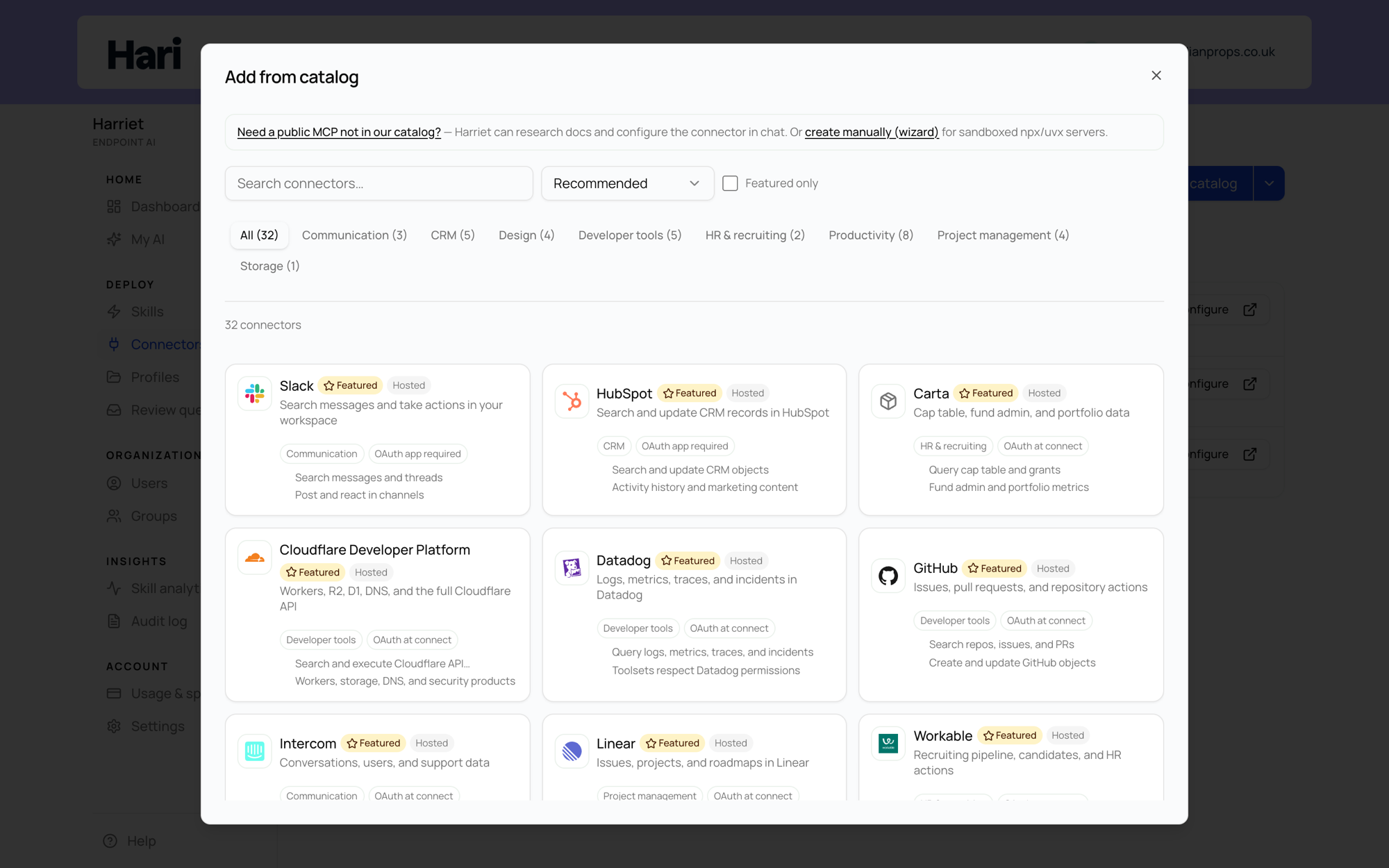
What's in the catalog
Harriet seeds the catalog with six templates:
- Slack — search messages and take actions in your workspace
- Atlassian (Jira & Confluence) — search and update Jira, Confluence, and Compass
- Asana — tasks and projects in Asana
- Microsoft 365 — mail, calendar, Teams, and SharePoint (guided setup)
- Google Drive (sandboxed) — list and read Drive files via MCP in Harriet's sandbox
- Google Docs — edit Google Docs with search/replace, comments, and anchored inserts
Every entry belongs to a category: Productivity, Developer tools, CRM, or Custom. Each seeded app also has a step-by-step admin guide, starting with Slack.
The three install modes
Hosted remote MCP. The vendor runs the MCP server; Harriet points the connector at its public HTTPS endpoint (Slack, Atlassian, and Asana work this way). Nothing runs on Harriet's side except the gateway, so these connectors are ready as soon as people connect their accounts.
Harriet sandboxed. Harriet runs a packaged MCP server (an npx or uvx command) inside its own sandbox — the Google Drive and Google Docs templates use this mode. Cold sandboxes take a moment to start, so some calls return as background jobs that finish shortly after; see Hosted and sandboxed connectors.
Guided external setup. The template walks an admin through setup that has to happen outside Harriet first, such as registering an app in the vendor's admin center (Microsoft 365 uses this mode). Once that groundwork is done, the connector behaves like any other.
From connector to skill
After a template installs, the wizard offers Create a skill: a list of published use cases for that app, each a starting point you can edit on the next screen. Pick one and Harriet creates the skill with the connector already attached; the Add new skill to default profile checkbox in the wizard controls whether it rolls out to your default profile straight away.
Prefer to wire things up yourself? Choose Skip — connector only and attach the connector to a skill later from skill authoring.
Not finding the app you need? The link under the template grid, Create custom MCP (npx / uvx), covers sandboxed servers that are not in the catalog — see Custom MCP servers.