Creating skills
New skills start in a short wizard (name, type, content) and end in either the review queue or straight into your live catalog, depending on your role. After creation, everything else happens in the skill editor.
The creation wizard
- Open Skills and start a new skill. The wizard opens on the Basics step: a Name, a Description ("For internal use — explain what this skill does so teammates reviewing the skills list understand it"), and the Active after approval checkbox.
- Choose the type. Pick Custom prompt, Skill package, or Built-in. You can change the type later from the skill editor, though packages and built-in skills cannot be converted into each other. Built-in skills also pick a Built-in tool here, and owners can set an optional Management group of delegates who may edit the skill besides account owners.
- Add the content. For a prompt skill, write the Skill instructions (the primary instructions the assistant sees when the skill is loaded) and tick any MCP integrations to attach connector tools. For a package skill, choose a source: Start from scratch (an empty
SKILL.mdto fill in), Sync from GitHub, or Upload zip, SKILL.md, or folder; see Skill packages. Only connectors already approved for use in live skills are listed; others stay in review until a reviewer approves them. - Save. The wizard offers Save and submit for review and, when your role can publish, Save and make live as well. From the confirmation step you can Assign to profile or user, Continue editing, or choose Done — back to list.
The two save paths
Save and make live approves the skill immediately. It is available only to people who may publish skills. Save and submit for review creates a draft and places it in the review queue; the skill is not live until a reviewer approves it, and the wizard says so: "a reviewer must approve it before it can be used in chat, desktop, or deployment."
Approved skills get an equivalent choice on every edit. Save changes (live) edits the live skill immediately when your role allows. Propose update for review creates a draft copy that stays out of runtime until a reviewer approves it; use it when another person must sign off. The statuses behind all this are on Review workflow.
The skill editor
Opening a skill from the catalog shows the editor, organized into tabs: Basics, Prompt & tools, Anthropic package, Profiles, Channels, Advanced, Preview, and Delete.
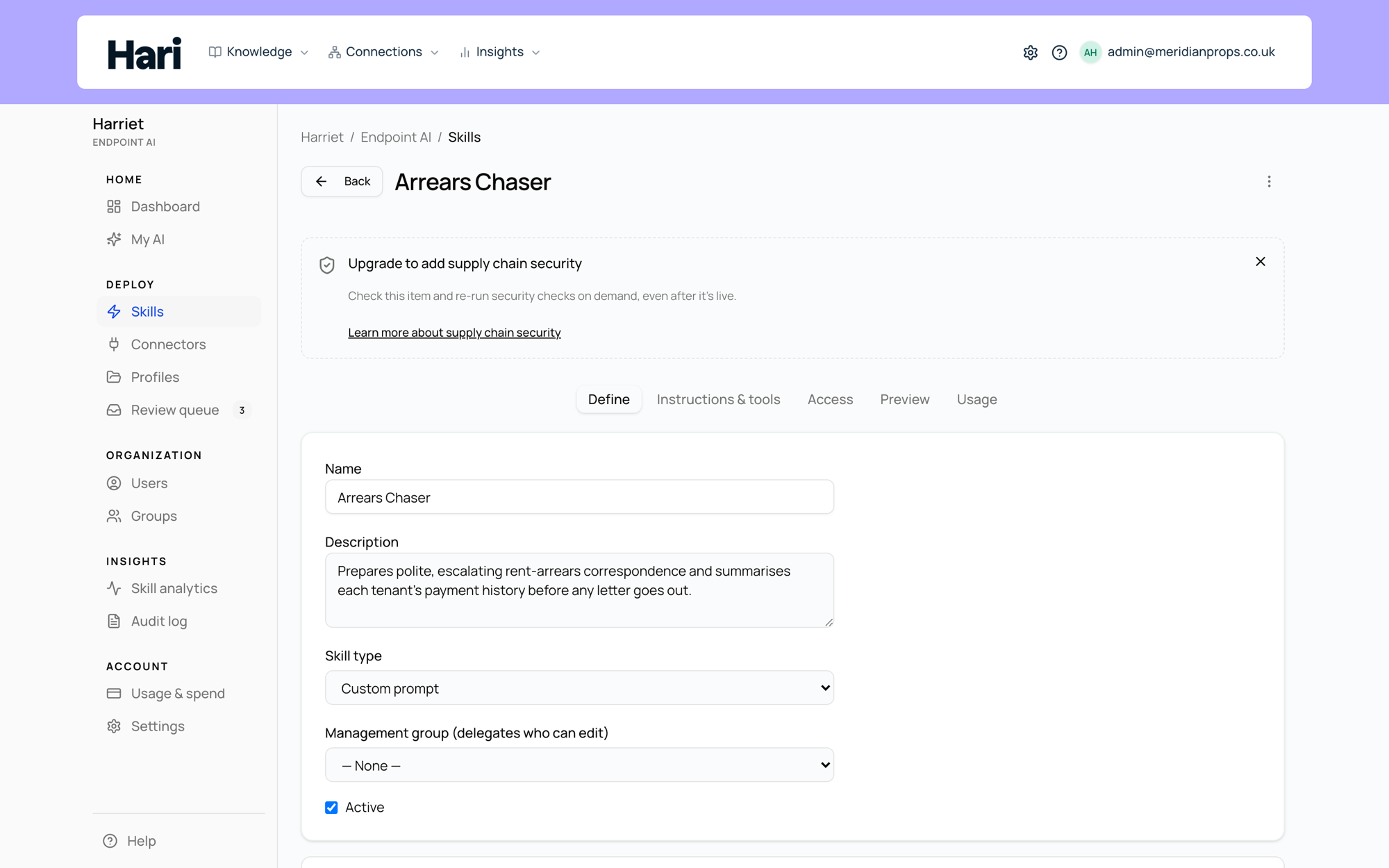
- Basics: name, description, connectors used, and the skill type (read-only: "Skill type cannot be changed after creation").
- Prompt & tools: the instructions and attached connectors. On a package skill whose content comes from files, this tab notes that the prompt is defined by package files.
- Anthropic package: file management for package skills only. Edit files, Download zip, import a zip or
SKILL.md, and GitHub sync settings. - Profiles: which profiles include this skill, with an include toggle per profile. Shown when Endpoint AI is enabled and you may manage profiles.
- Channels: where the skill is offered in chat surfaces.
- Advanced: additional configuration and access settings.
- Preview: the capabilities the skill produces, as a person would receive them, with a Refresh preview button.
- Delete: permanent removal. Built-in default skills are deactivated instead of removed.
Deleting a skill can break profiles and device sync that reference it: "Assignments and device sync state that reference this skill may stop working until admins update profiles."