Your devices
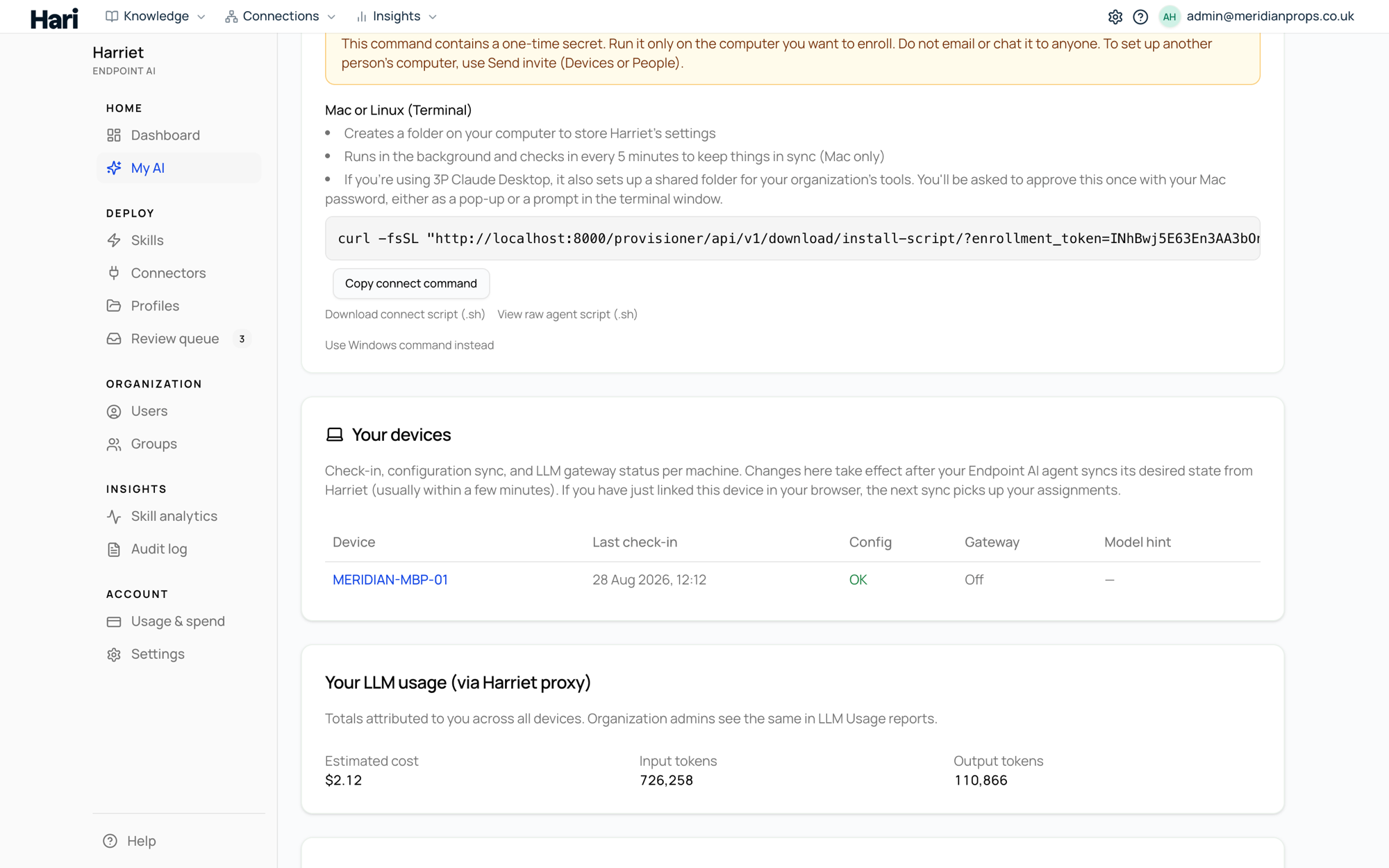
The Your devices card on My AI lists every computer linked to your account: last check-in and whether the agent has applied the latest desired configuration.
Reading the table
Each row is one enrolled computer. Select a device name to open its detail view.
| Column | What it shows |
|---|---|
| Device | The computer's hostname (or a short device id when no hostname is known). |
| Last check-in | When the device last reported to Harriet. Devices check in every five minutes while running, so a recent timestamp means the device is live. |
| Config | OK, Failed, or No report yet: the result of the device's most recent attempt to apply your configuration. |
| Proxy | On or Off: whether the Harriet LLM proxy is enabled on that device. |
| Model hint | The model your organization profile suggests for that device, or — when none is set. |
What each Config state means
- OK means the device applied the latest configuration (or confirmed nothing changed). Your skills, connectors, and model settings are in place.
- Failed means the device tried to apply the configuration and reported an error. Your desktop AI may be running an older setup until the next successful sync.
- No report yet means the device hasn't reported a deployment result. This is normal right after linking a new device; it should resolve on its own within a few check-ins.
If a device stays on Failed or No report yet, first make sure the computer is on and the agent or desktop app is running, then give it a check-in cycle. Still stuck? Work through Device not syncing, and share the device name and Last check-in time with your admin if you need help.
Linking a device with a code
When you install the agent or a desktop app on a new computer, it shows a short user code and asks you to confirm the link in your browser. That's what the Link device (enter code) link above the table is for — use it "when the agent shows a user code on this machine."
- Install on the new computer. Use the connect cards on My AI, the install flow from Get started, or the enrollment invite email from your admin.
- Wait for the code. The agent displays a 9-character user code on that machine.
- Select Link device (enter code). Enter the code while signed in as yourself. This ties the device to your account, so it receives your skills and your usage is attributed to you.
If the table says "No devices linked to your account yet", use the link above, the install flow from Get started, or ask an admin to send you an enrollment invite. The full linking flow, including what admins see, is at Linking devices.