Teams & people
The directory is where organization structure meets provisioning: teams carry the profiles, people carry the devices, and together they determine what lands on every machine.
Teams
The Teams screen shows every team as a card ("N teams across your organization"), with its member count and how many profiles are assigned ("No profiles assigned" until you give it one). New team creates a team in Company settings; membership is also managed there, via the "Manage groups (add/remove members)" link, while the provisioner console is where you decide what each team receives.
Select View → on a card to open the team detail:
- Overview: name, team ID, and member count, with a link to Team config for adding or removing members.
- LLM usage (this month, team): the team's model spend, the same data as usage analytics scoped to one team.
- Team assignments: the profiles and individual capabilities assigned to this team. Add or remove here; select a profile to see what capabilities it bundles.
- Members: each member with their linked device count and whether they have made successful MCP calls yet ("Has made calls" / "No calls yet"), which makes per-team adoption visible at a glance.
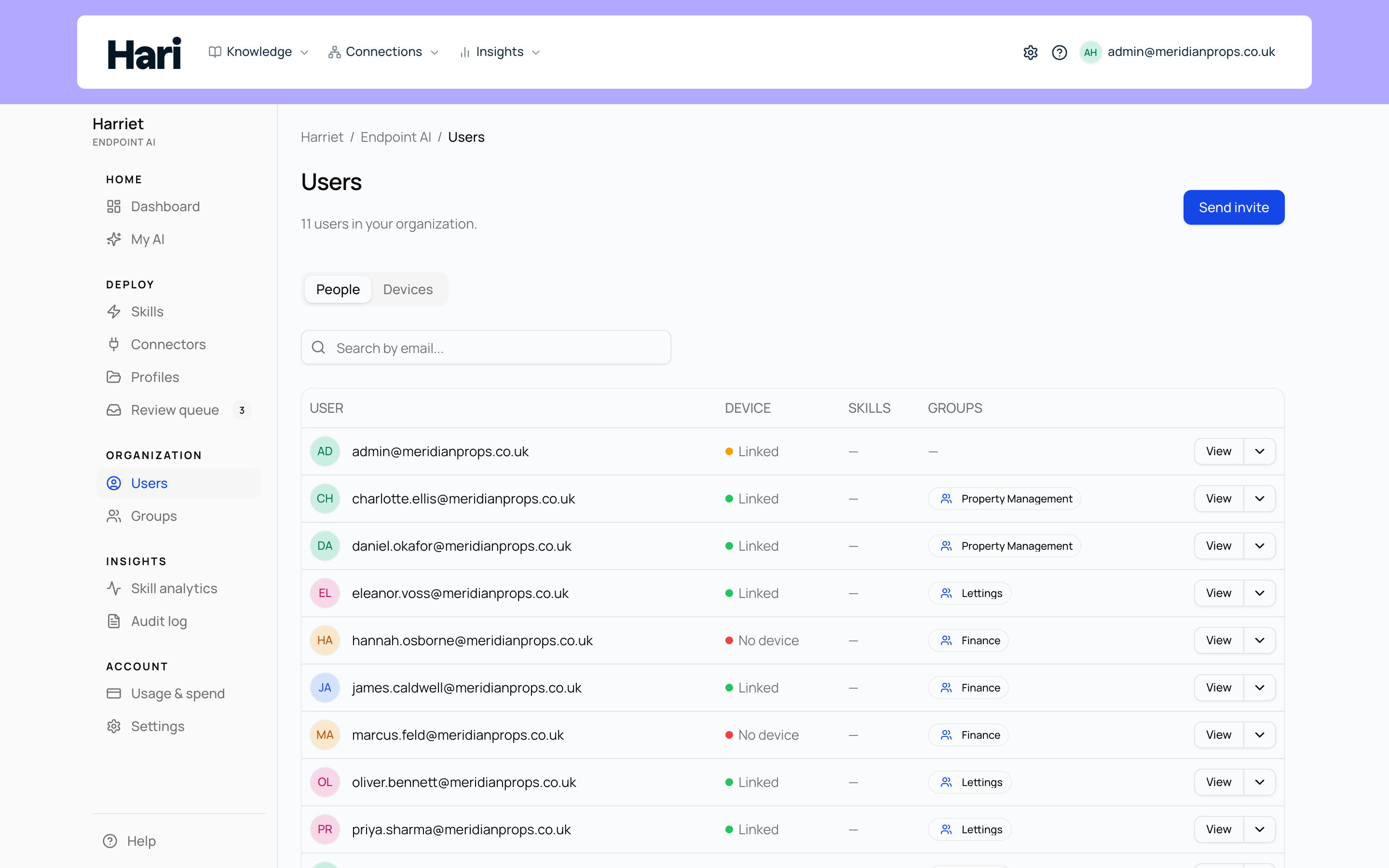
People
The People screen lists everyone ("N users in your organization"), with a search-by-email box and a button to send an enrollment invite. The table shows each person's device status (Linked or No device) and their teams, so the gap between "added as a user" and "actually enrolled" is always visible.
People are created in Manage users, not here: add someone there first, then send the invite from People.
Person detail: the Access tab
Open a person to see two tabs. Access answers "what does this person get, and why":
- Effective access: everything combined, itemized by origin: from the default profile, from direct assignments, and from each team, with every profile expanded into the skills it contains.
- LLM usage (this month): this person's model spend.
- Direct assignments: profiles and capabilities assigned to this person specifically, with add and remove controls. Use these for exceptions; teams are the rule.
- From teams: capabilities received via team membership, each labeled with the team it came through. These cannot be removed here; leaving the team or unassigning from the team is the fix.
If the person has open skill requests, a banner at the top counts them ("N pending skill access requests") with an Open skill requests shortcut, so requests surface where you're already deciding what the person should have.
Person detail: the Capabilities tab
Capabilities shows the result rather than the configuration: every skill this person has, with a summary line ("N skills · N tools active · N tools locked"), search, and All / Issues / Available filters. Expand a skill to see its source (From default profile, Direct, From team …), the systems it uses, how its data access is limited, and each tool with its description; locked tools are marked, and prompt or package skills note that they provide instructions with no tools.
An issues banner at the top counts actions needed — typically skills waiting on a personal connection, each with a Connect → link. That usually means an OAuth connection the person still has to authorize themselves.
How membership becomes device config
Team membership is the delivery mechanism. Assign a profile to a team, and every member's enrolled devices receive its skills, connectors, and settings on their next sync; add someone to the team and their device picks the same bundle up automatically, remove them and it goes away. Direct assignments follow one person across their devices instead. That is why the practical rule is one profile per team shape: change the profile once and the whole team's fleet follows.