Budgets
Budgets cap managed LLM spend for a person, a team, or the whole organization, and decide what happens when the cap is hit: a warning, a soft block, or a hard block.
Create a budget
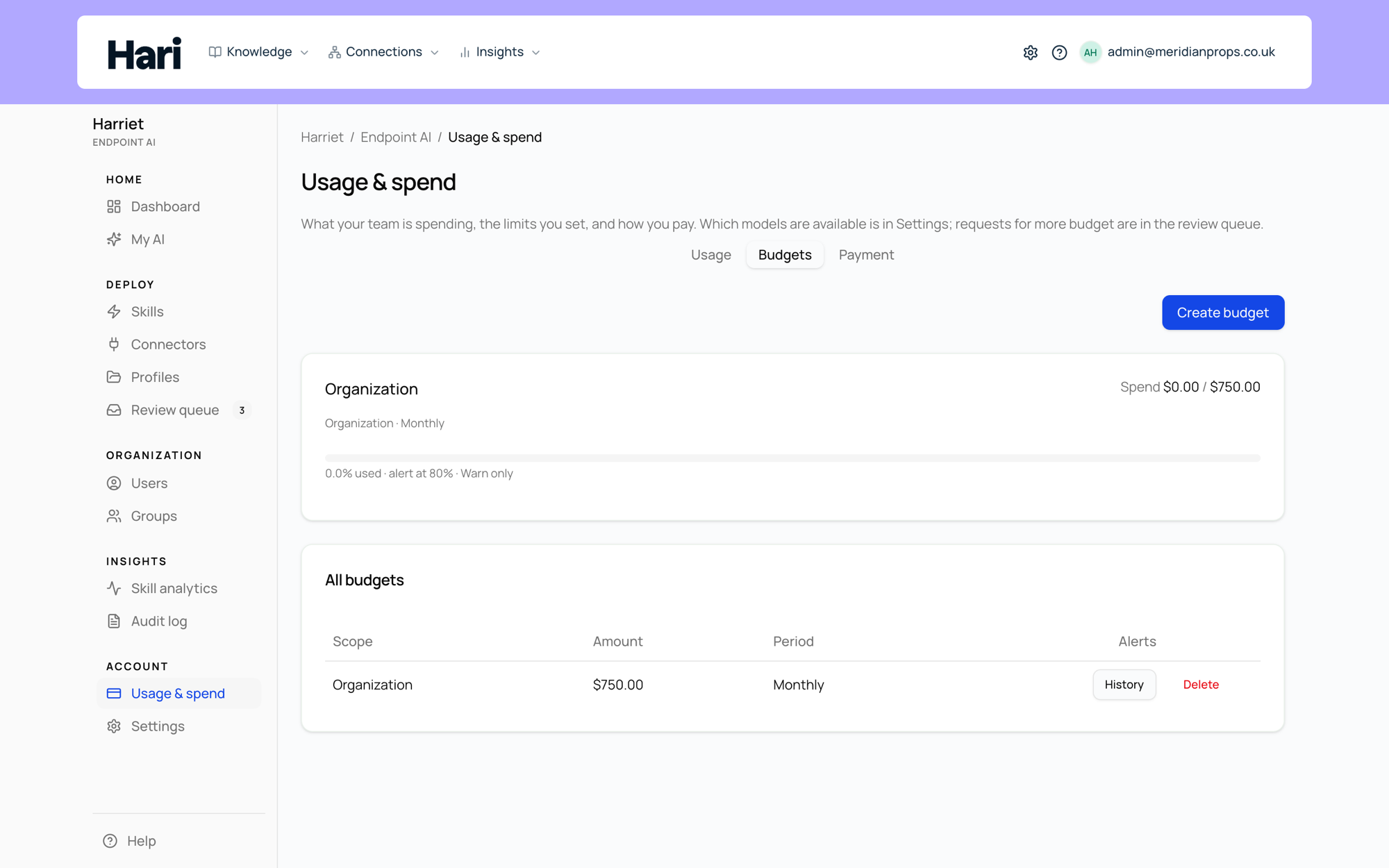
- Open LLM usage and switch to the Budgets tab. Creating and deleting budgets requires the manage-budgets role.
- Select Create budget. The dialog asks you to define scope, amount, period, and alert behavior.
- Pick the Scope. Organization covers everyone; Team covers one team you then select; User covers one person.
- Set the Budget (USD) and Period. The period is Monthly (calendar month) or Weekly (Monday to Sunday). Spend resets to zero at the start of each period.
- Choose On exceed and the Alert threshold %. The action (below) fires when spend passes the budget amount; the alert notification fires earlier, at the threshold percentage (default 80).
- Select Create. The new budget appears as a status card with a progress bar showing spend against the amount.
What each action does
| On exceed | Effect on LLM calls |
|---|---|
| Warn only | Calls continue unchanged. Threshold and exceeded alerts are still sent, once per period. |
| Soft block | Calls still go through, but the proxy marks each response as over budget (the X-Harriet-Budget-Exceeded: soft header) with a message naming the budget, so client apps can surface it. |
| Hard block | Calls are refused until the period resets or you raise the amount. The error states which budget was exceeded, e.g. "Your team Sales has exceeded its monthly LLM budget of $200.00." |
Two behaviors are worth knowing. First, budgets count managed spend only — BYOK usage is billed by your own provider and is not counted against budgets. Second, when several budgets apply to one person, they are checked in order: their user budget, then their team budgets, then the organization budget, and the first hard block wins. Spend checks are cached briefly, so enforcement can lag new usage by a few moments.
Each budget's History button opens its alert history: which threshold and exceeded notifications were sent, and when. Delete removes a budget immediately.
Pair budgets with the model allowlist
Budgets control how much is spent; the model allowlist controls how fast it is spent. Restricting a team's devices to cheaper models stretches the same budget much further, and keeps an accidental "expensive model for a bulk job" from burning a week's allowance in an afternoon. Allowlist controls require Endpoint AI Team or higher — see Plans & pricing.
Recommended starting setup
Start permissive and tighten with data:
- One Organization budget, Monthly, set to Warn only at roughly what you expect to spend. Run it for a full period and compare against usage analytics.
- Then add Team budgets with Soft block for teams whose spend you want visible pressure on.
- Reserve Hard block for cases where a stopped call is better than an overrun. It interrupts people mid-task, so use it deliberately.
A hard block stops spending; it doesn't refill anything. If the real problem is an empty balance rather than an over-budget team, see Credits & top-ups.