Terminal and background agent
The background agent is the piece that actually writes configuration to a device: it fetches the desired state from Harriet, applies skills and connectors to the desktop apps, and checks in every 5 minutes. Install it with a one-line terminal command.
How the install works
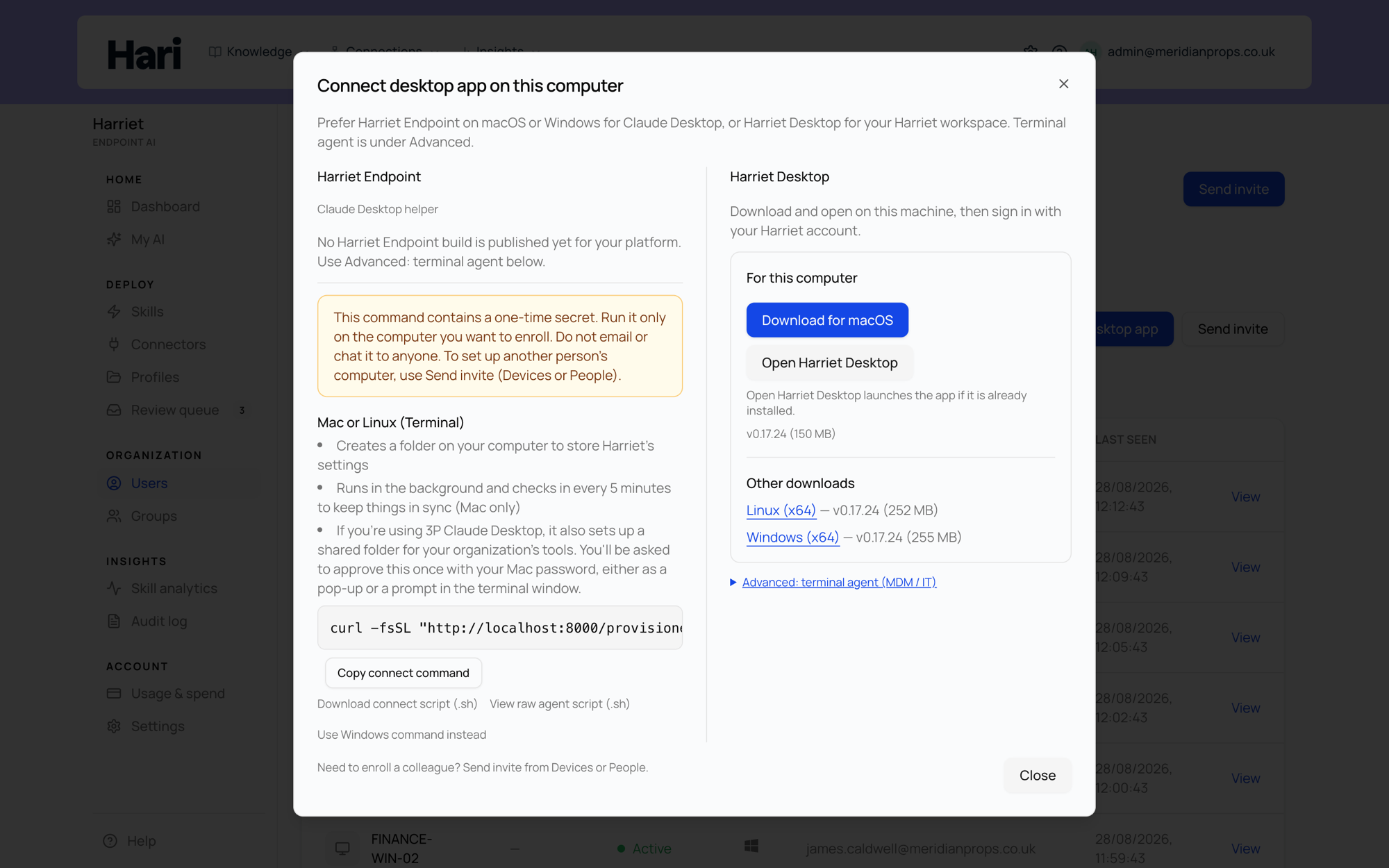
The console's install action (Connect desktop app on the Devices section, or the Advanced section of an enrollment invite) generates a one-line command containing a one-time enrollment token. Treat that command like a password. To enroll someone else, send them their own invite instead of sharing yours.
On macOS, the command has this shape (the real URL comes from the install modal):
curl -fsSL "<install-package-url>" | bashIt saves the agent to ~/.harriet/agent.sh, installs a LaunchAgent at ~/Library/LaunchAgents/com.harriet.provisioner.plist, loads it with launchctl, and runs once so the device can link to a Harriet user.
On Windows, the PowerShell equivalent is:
irm "<install-package-url>" | iexIt saves agent.ps1 under %USERPROFILE%\.harriet\, registers the scheduled task HarrietProvisionerAgent on a 5-minute interval, and runs once to link the device. Python 3 must be on PATH (py -3, python3, or python). For Claude Desktop without a Claude account, the installer may prompt UAC once to prepare the org-plugin directory; if declined, linking still completes and skills apply after you re-run the installer and approve it.
- Get the command. Open the install modal in the console, or expand Advanced on your enrollment invite page, and copy the one-liner for your platform.
- Run it in a terminal. The agent installs, schedules itself, and performs its first run.
- Sign in when the browser opens. The agent opens a browser window so you can link this computer to your Harriet account. Assigned skills and tools appear within a few minutes.
- Restart your desktop app once. If skills or MCP tools do not appear in Claude Desktop after the first sync, fully quit and reopen it.
What it does on every run
On each run, every 5 minutes via the LaunchAgent or scheduled task, the agent authenticates, fetches the device's desired state, applies any changes to the configured desktop targets, and checks in. That check-in drives the device's status in Devices. Enrolled agents also update themselves from Harriet on this schedule, so you never redistribute install packages for agent fixes.
On a device where Harriet Desktop manages its own configuration, the agent detects that and skips those files, still handling Claude Desktop if the device targets both.
MDM and headless rollout
IT can deploy the agent through Jamf, Kandji, Munki, or any tool that runs a script on a schedule, using environment variables such as HARRIET_SERVER, HARRIET_ENROLLMENT_TOKEN, and HARRIET_NO_USER_AUTH=1 for non-interactive runs. Each person still links their own device before user-scoped skills work. Full details are on the MDM page.
Uninstall
The recommended route is from the console: open the device in Devices and choose Remove device and all configuration. The next agent run removes Harriet-managed desktop configuration, deletes the agent directory, and unloads the LaunchAgent or scheduled task; see removing a device. When the console cannot reach the machine, run the enrolled agent once with --wipe; on macOS:
bash "$HOME/.harriet/agent.sh" --wipeDeleting only the agent files by hand does not remove Harriet's entries from Claude Desktop, managed policy, or provisioned skill folders — those stay in place until you use a proper wipe.