Harriet Desktop
Harriet Desktop is your company's AI workspace: a native app for macOS, Windows, and Linux where you chat, run skills, and approve tool use, signed in with your Harriet account. Skills, connectors, and model access arrive pre-configured, so the app is ready to work the moment you sign in.
What the app is
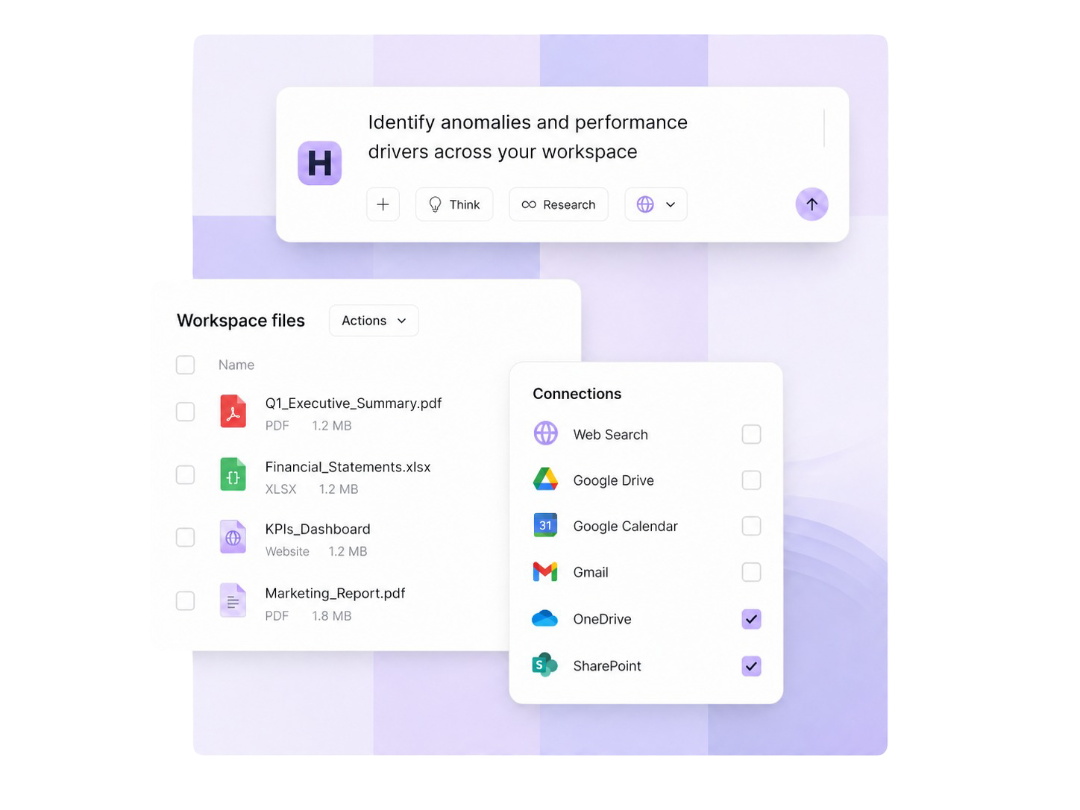
Work happens in chat sessions inside a workspace, a folder you have explicitly shared with the app. You describe the job, the response streams in as the AI works, and longer tasks show an execution plan you can follow step by step. A finance analyst can point a session at a folder of statements, an operations manager can draft a rollout checklist, a salesperson can prep an account summary — all in the same app, with the same guardrails.
Three things make it your company's workspace rather than a personal chat app:
- Skills assigned to you through your profile sync in automatically and teach the AI your organization's way of doing a job.
- Connectors installed by IT appear as tools the AI can use, and every proxied tool call lands in the audit log.
- Models come through Harriet's LLM proxy — every leading provider your organization has enabled, with no personal AI subscription required.
Get the app
- Download it. Use the download on your enrollment invite page, or the Download Harriet Desktop action in the Endpoint AI console. The console offers Download for this computer plus builds for the other platforms.
- Install it. On macOS, open the
.dmg, drag Harriet Desktop into Applications, and launch it; macOS may ask you to trust the app on first open. On Windows, run the x64 MSI installer; administrator rights may be required. - Sign in with Harriet. On first launch the app shows a Harriet Account screen with one primary action, Sign in with Harriet. It opens your browser, you approve the device while signed in to Harriet, and the browser hands you back to the app. There are no codes to copy.
- Confirm your skills arrived. Open a chat and check that your assigned skills appear. Try
/onboardto connect pending integrations, or connect per-user accounts under Profile → Integrations if prompted.
Signing in enrolls the computer as a device, so admins see it in Devices like any other enrolled machine. See Sign-in & sync for how the app stays current and what signing out does.
What arrives pre-configured
- Skills. Package and prompt skills are deployed into the app from your assigned profiles and direct assignments.
- Connectors. MCP servers appear in the app; proxied tool calls are audit-logged.
- Models. The model picker follows your organization's allowlist and billing setup.
- Rules. Profile instructions land in the workspace so every session starts with your organization's guidance.
While the app is open it checks Harriet for changes every 5 minutes, so a skill or connector assigned in the console reaches you within minutes, with no restart.
Learn the app
Sessions, streaming responses, the execution plan on longer tasks, and how workspaces organize work.
How assigned skills appear and activate, the Skills tab, and what to do when one is missing.
The permission prompt, what Deny, Once, and Allow for session mean, and what gets audited.
The model picker, where the list comes from, and why there is no per-seat subscription.
The browser sign-in flow, the 5-minute sync, and what Sign out (this device) does.