Turning tools off
Assigned a skill you don't use? The Tools per capability card on My AI lets you stop any skill from being provisioned to your machines — without asking an admin, and without affecting anyone else.
The Tools per capability card
This card lists every skill assigned to you, with the "Same detail as the Capabilities tab on your person record in People — each skill expands to list the tools you can use and any access notes." Next to each skill is a checkbox. As the card explains: "Use the checkbox next to a skill to stop it being provisioned to your machines (your assignments still exist; this only affects your devices)."
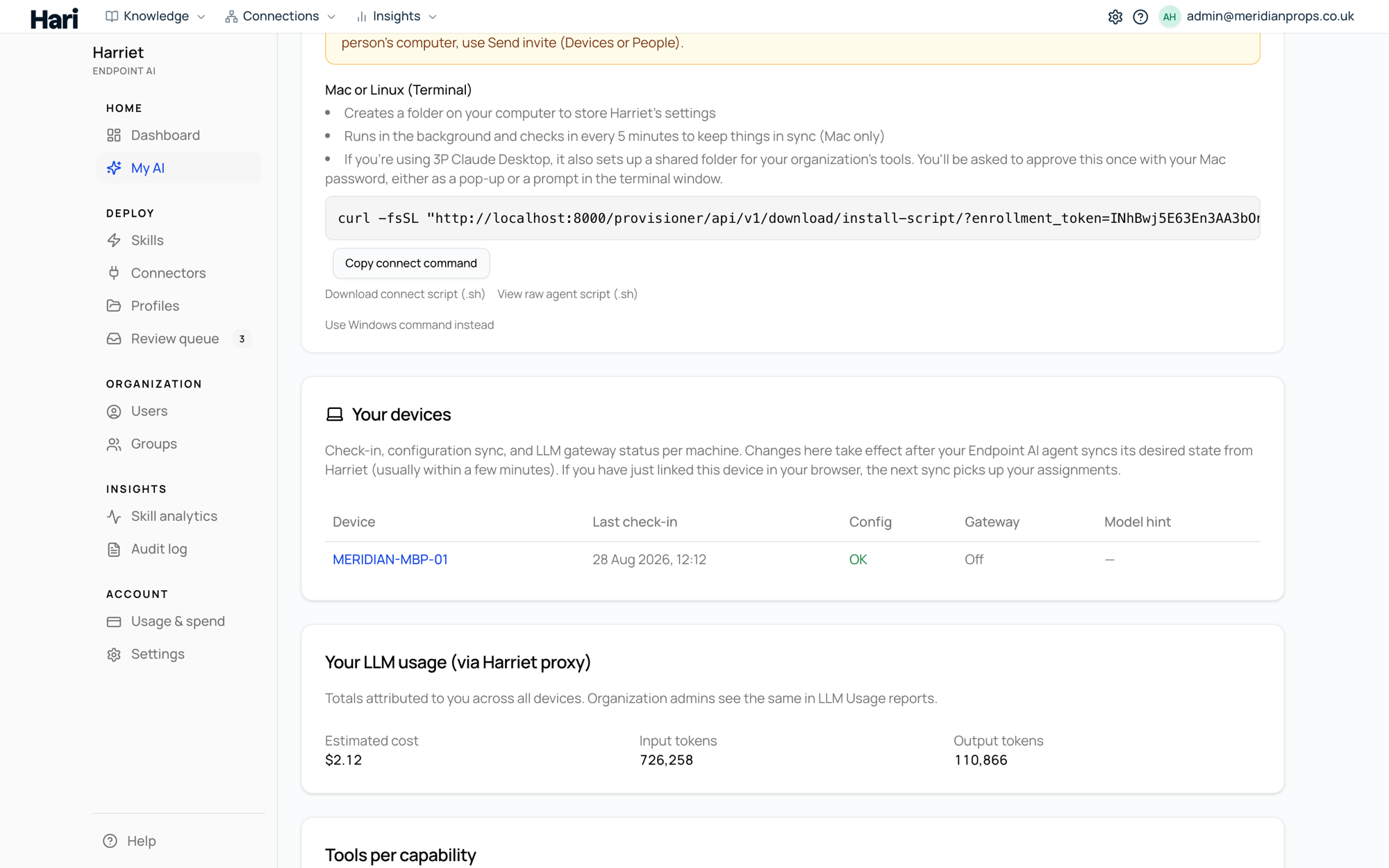
- Open My AI and scroll to the Tools per capability card.
- Untick the checkbox next to the skill you want off your machines.
- Select Save changes. You'll see "My AI preferences saved." Your linked devices drop the skill on their next sync.
When you'd use it
- A team-wide skill isn't relevant to your work and you'd rather keep your AI's toolset lean.
- A skill's tools get picked up when you don't want them — turning the skill off keeps it from being provisioned at all.
- You're troubleshooting and want to rule a skill out temporarily.
What it does and doesn't change
This is a per-person device preference, not an access change:
- Your devices only. Teammates who share the same profile or team assignment keep the skill. Nothing changes for anyone else.
- Your assignments still exist. Harriet keeps the assignment; you're only telling it not to provision that skill to your machines. Admins still see the skill among your assignments.
- Fully reversible. No request or approval is needed to undo it.
Opting out is the reverse of requesting a skill: requests change what you're assigned, the checkbox changes what lands on your machines.
Turning a skill back on
Tick the skill's checkbox again and select Save changes. Because the assignment never went away, the skill is provisioned back to your devices on their next sync, with no admin involved. If it doesn't reappear after a sync cycle, see Skill not appearing.