Requesting skills
See a skill in the catalog you'd like to use? You can request access yourself — no email to IT required. An admin approves or denies the request, and some skills are granted instantly.
How to request access
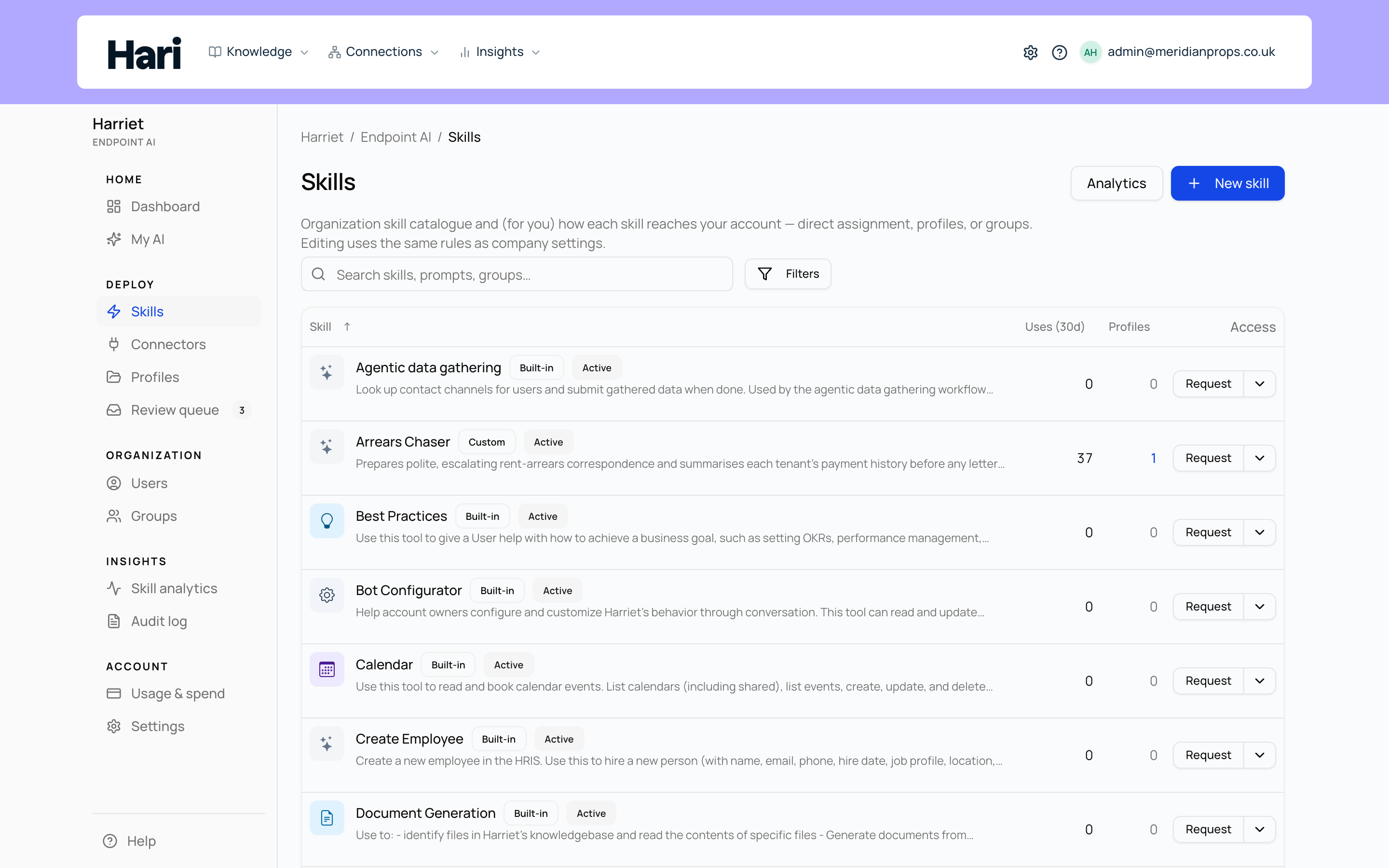
- Open Skills. The Skills section shows your organization's skill catalog and, for each skill, how it reaches your account (direct assignment, profiles, or teams).
- Find the skill. Search or filter (All, Custom, Built-in) to locate it.
- Select Request access. The button appears on skills you don't have yet that are open to requests. You'll see "Skill access request submitted." and the skill switches to a Request pending badge.
While a request is open, a banner at the top of Skills lists it under Your pending skill requests. If a skill shows No access request available instead of a button, it isn't open for self-service requests — talk to your admin about that one.
What happens next
Your request lands in the admin console under Skill requests, where anyone with Manage Harriet Provisioner access can act on it:
- Approve grants you a direct skill assignment: the skill becomes part of your setup and is provisioned to your linked devices on their next sync.
- Deny can carry a short reviewer note explaining why.
- Some skills are set to auto-approve requests: you get access immediately on submit, and the request is recorded as Auto-approved.
Either way, you're notified by email when the request is resolved, and the reviewer's note (if any) is included in that email.
Request statuses
| Status | Meaning |
|---|---|
| Pending | Waiting for an admin to review it. |
| Approved | An admin granted you a direct skill assignment. |
| Denied | An admin declined the request, optionally with a note. |
| Auto-approved | The skill grants requests automatically; you had access the moment you asked. |
Approved and can't find the skill on your machine? Give your device a sync cycle, then check Skill not appearing. And if you got a skill you don't actually want on your machines, you can turn it off yourself: see Turning tools off.