Quickstart
Sign up, walk the onboarding wizard's six milestones, and finish with a working skill on your own computer — then invite the rest of the team.
Sign up
Create your organization at hrharriet.com/provisioner/signup/. You can sign up with Google or Microsoft. Signup creates a new Endpoint AI organization and drops you into the onboarding wizard.
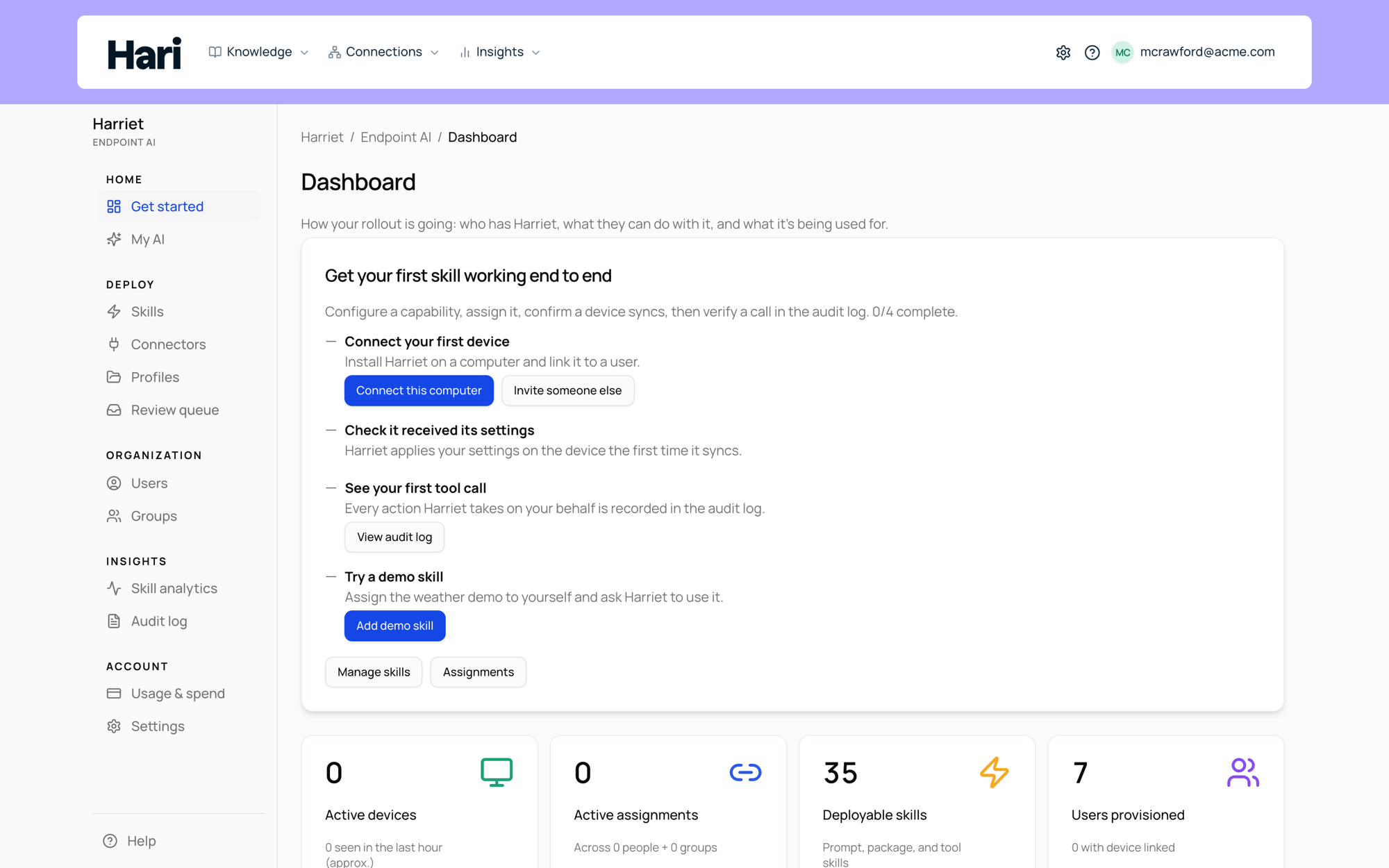
The six milestones
The wizard tracks six milestones. Work through them in order; each one is marked done automatically when Harriet detects the result (a card on file, a device check-in, a provisioned skill), not just when you click through.
- LLM usage & billing. Choose how model calls are paid for: managed billing with a free usage credit (no charge until you exceed it), your own API keys (BYOK), or skills and connectors only with no managed LLM billing. You can skip adding a card for now.
- Choose your desktop app. Harriet Desktop is the default workspace for most rollouts; Claude Desktop (with an existing Claude subscription) and Claude Desktop (no Claude account) are there for teams that want Anthropic's app. This sets the account default for newly enrolled devices. The desktop overview compares the three.
- Install your desktop app. Sign in to Harriet Desktop, or for the Claude Desktop modes install the background agent on this computer. As the agent connects and the device checks in, the ambient Background agent and Device chips in the wizard turn green on their own.
- Add your first capability. Choose a simple demo skill, an MCP server, or a GitHub skill package. Harriet provisions whatever you pick when the agent next syncs.
- Try it out. Run a quick read-only action in your chosen app to confirm everything works, then continue — or skip for now.
- Add teammates, then enrol devices. Add people as Harriet users (Manage users), then send each one an enrollment invite from People so they can install the agent and link a device.
The fastest first capability: the demo skill
For milestone 4, pick the demo skill: Harriet Weather (Demo). It exposes one tool, get_weather, through Harriet's MCP proxy, and it needs no API key, so nothing stands between you and a working end-to-end test. Once the agent has synced, ask your desktop app for the weather in any city. The call travels through Harriet's gateway, which means it also gives you your first row in the audit log.
If skills or MCP tools do not appear in your desktop app after the agent syncs, fully quit and reopen the app once. Both Claude Desktop and Harriet Desktop load new MCP servers and skills at startup.
Where to go next
With one device provisioned and teammates invited, the shape of a real rollout is: create a profile with the skills a team needs, assign it to the team, and let each person's enrolled device pick it up. The rollout playbook covers sequencing, and Creating skills shows how to build capabilities of your own beyond the demo.