Organization settings
The Settings screen holds your organization-wide defaults: which desktop apps devices may run, how Harriet handles local MCP config, the LLM proxy and its model list, audit detail, and your API keys.
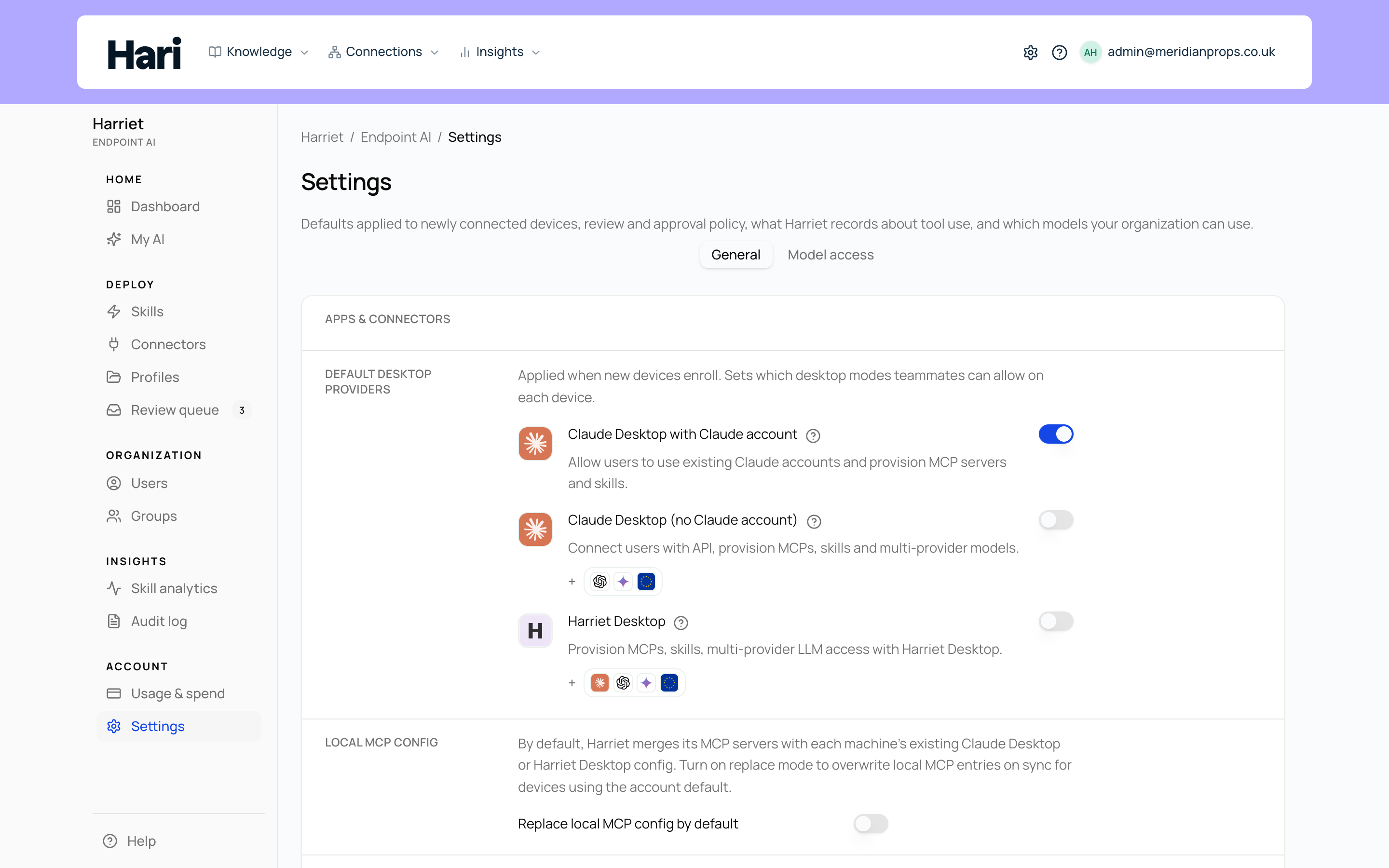
Anyone who can view the console can read Settings; changing anything requires the Manage Harriet Provisioner role, and one toggle is owner-only, as noted below. See Roles & permissions.
Devices & sync
Default desktop providers. Applied when new devices enroll; sets which desktop modes teammates can allow on each device: Harriet Desktop, Claude Desktop with a Claude account, or Claude Desktop without one. This is a default, not a mandate: each device carries its own provider config, so devices enrolled before a change keep their existing setup. Compare the surfaces in the desktop overview.
Local MCP config. By default, Harriet merges its MCP servers with each machine's existing Claude Desktop or Harriet Desktop config, so personal MCP entries survive. Turn on Replace local MCP config by default to overwrite local MCP entries on sync for devices using the account default, which gives you a fully managed config at the cost of anything people set up themselves. See how sync works.
Harriet Desktop and Managed Claude Desktop
LLM proxy. The Use Harriet as LLM proxy switch routes model calls from Harriet Desktop devices and managed Claude Desktop installs through Harriet, using your organization's API keys below or Harriet-managed keys once billing is set up. This is what makes model allowlists, budgets, and usage analytics possible. Turning it off removes Harriet's control over model routing for those installs; it has no effect on people who sign in with their own Claude account. Enabling it requires a payment method on file or a BYOK key — the console prompts you for one of the two. Full detail: the LLM proxy.
Available models. Appears once the proxy is on: a checklist of gateway models grouped by provider (Anthropic, Anthropic (EU), OpenAI, Google Gemini), with per-model pricing shown on hover. By default every model your configured keys expose is available and new models appear automatically; once you customize the list, new models no longer appear on their own until you reset to all. Choosing which models are available requires Endpoint AI Team or higher, and Anthropic (EU) models require Endpoint AI Business or higher. See available models and EU data residency.
MCP audit logs
Tool call detail. The Store tool arguments and results switch controls whether MCP tool calls record their arguments and result bodies for support and debugging. Two safeguards apply because this data can contain sensitive employee information: only account owners can change the setting, and viewing the stored payloads requires the separate View provisioner tool debug data role — being an owner alone is not enough. Tool-level MCP audit requires Endpoint AI Team or higher. The data lands in the audit log, where error text remains visible with ordinary audit access even when this is off.
LLM API keys (BYOK)
Organization keys used when Harriet proxies LLM calls. Two rules govern them: BYOK keys take precedence over Harriet-managed credits, and keys are never shown again after save. The table lists each provider with its status (Key configured, No key, or Managed billing only; Anthropic (EU) is available through managed billing only) and a Remove action.
- Pick the provider. Under Add or replace a key, choose the provider from the dropdown.
- Paste the API key. The field is masked; Harriet stores the key without ever redisplaying it.
- Select Save key. The provider row switches to Key configured. Saving a key for a provider that already has one replaces it.
For when to choose BYOK over managed credits, and how billing behaves in each mode, see BYOK and managed credits.
Settings that gate on plan tier (the model allowlist, Anthropic (EU) models, tool call detail) show an upgrade note in place when your plan lacks them. Only a user with billing access can upgrade; see plans.